How to Scan and Fax a Document on Android
You can scan and fax from Android with nothing but your phone. You don't need a landline, a fax machine or a subscription. Cheapfax scans the pages with your camera, turns them into a fax and sends it for 50¢ per page.
Cheapfax sends faxes to the United States and Canada. It only sends. It can't receive faxes.
What You Need to Scan and Fax From Android
An Android phone running Android 8.0 or later.
The Cheapfax app from Google Play, signed in with Email or Google.
The paper pages you want to send.
The recipient's fax number, in the US or Canada.
For more on how pricing works, read How to Fax From Android With No Subscription.
Step 1: Open Cheapfax and Tap New Fax
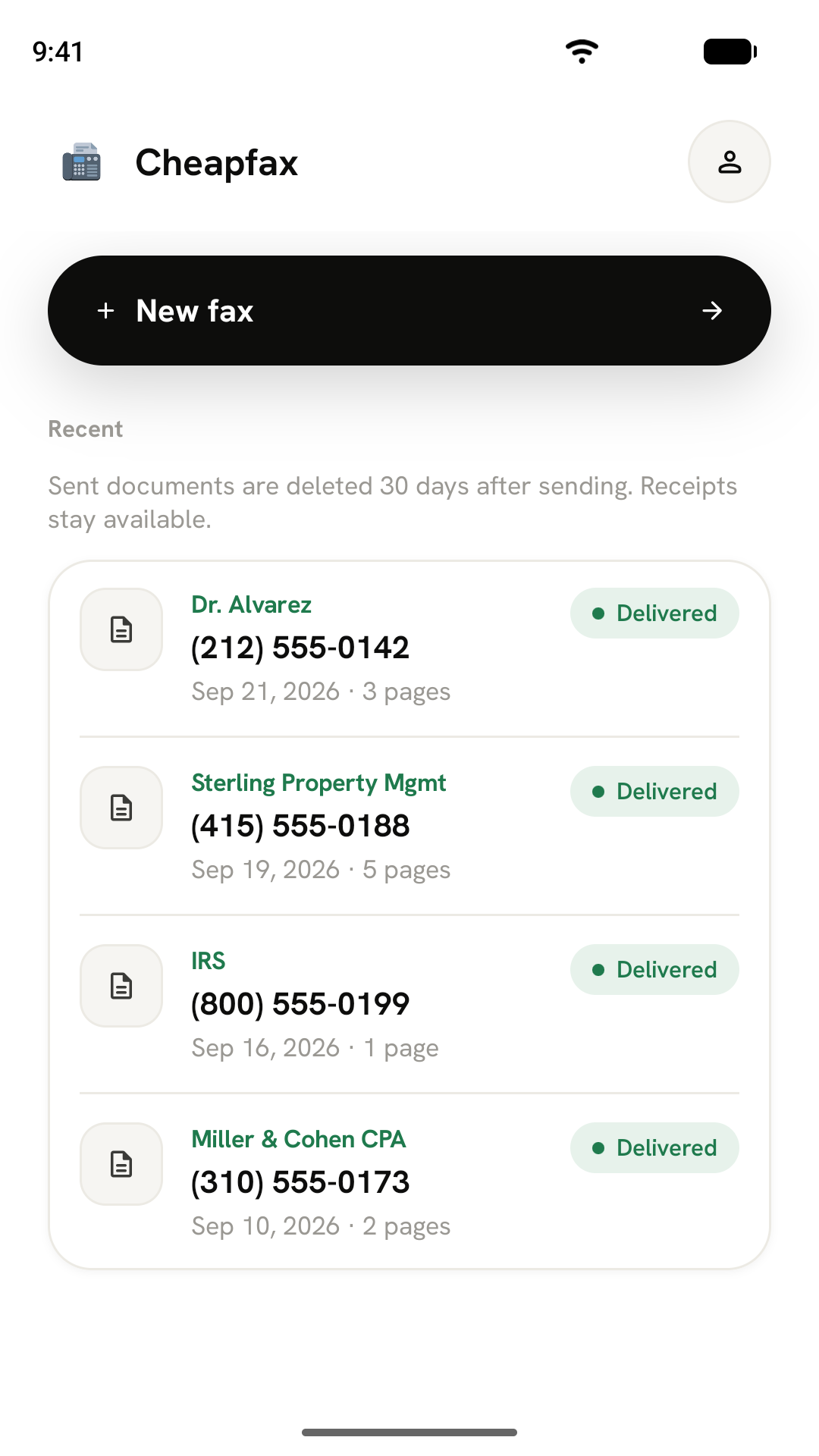
Home shows a New fax button and a Recent list of faxes you've already sent. Tap New fax.
Step 2: Scan With Your Camera
The New fax screen gives you three ways to bring in a document: Scan with camera, Choose from Files and Choose from Photos. Tap Scan with camera.
The document scanner opens. Capture each page, then finish the scan. You can scan several pages into one fax.
Cheapfax cleans each scanned page into black and white before it goes out. Shadows and gray paper are flattened.
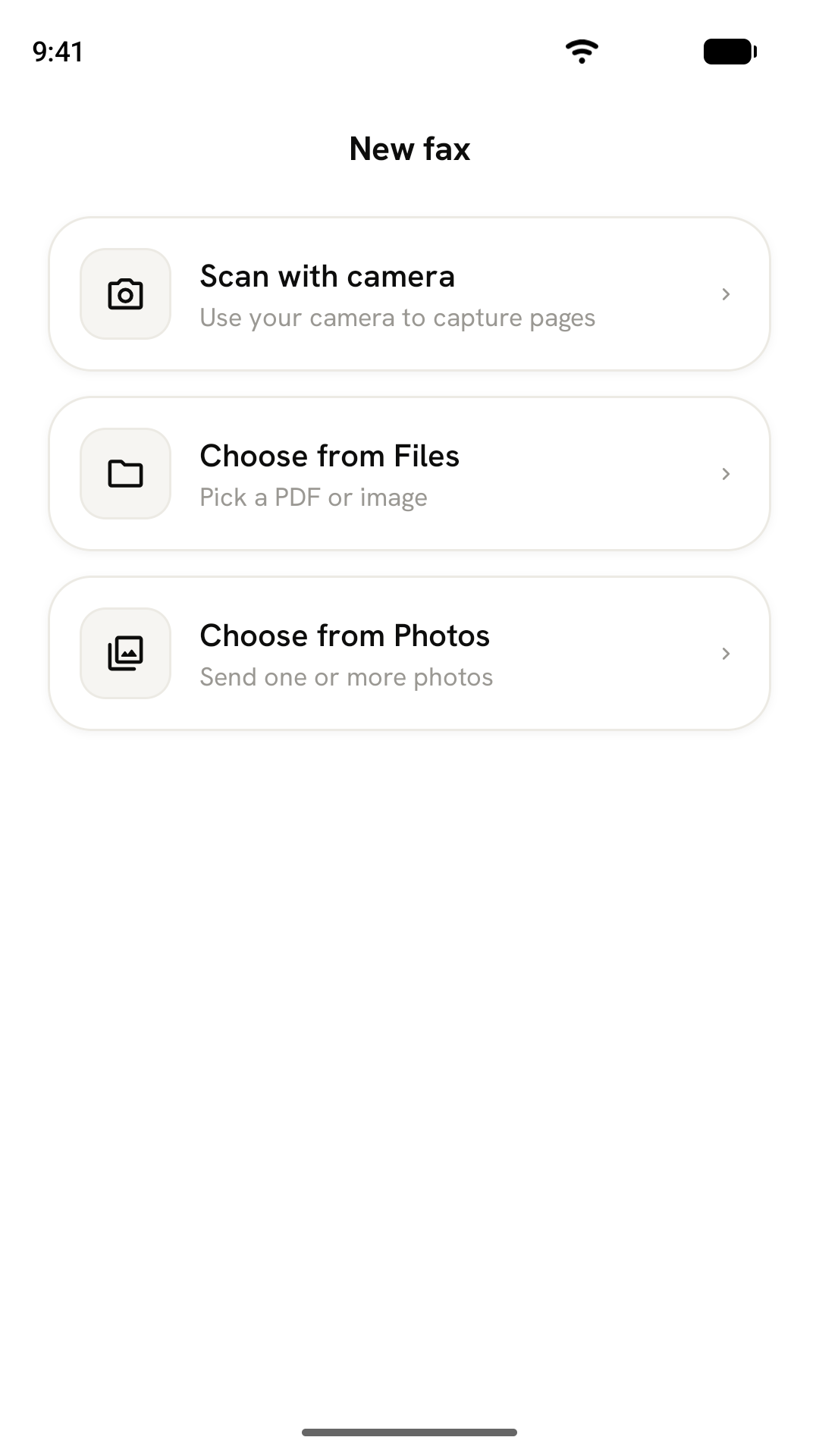
A document already on your phone works too. Tap Choose from Files to pick a PDF or an image. Tap Choose from Photos to send one or more photos as pages.
Step 3: Enter the Fax Number
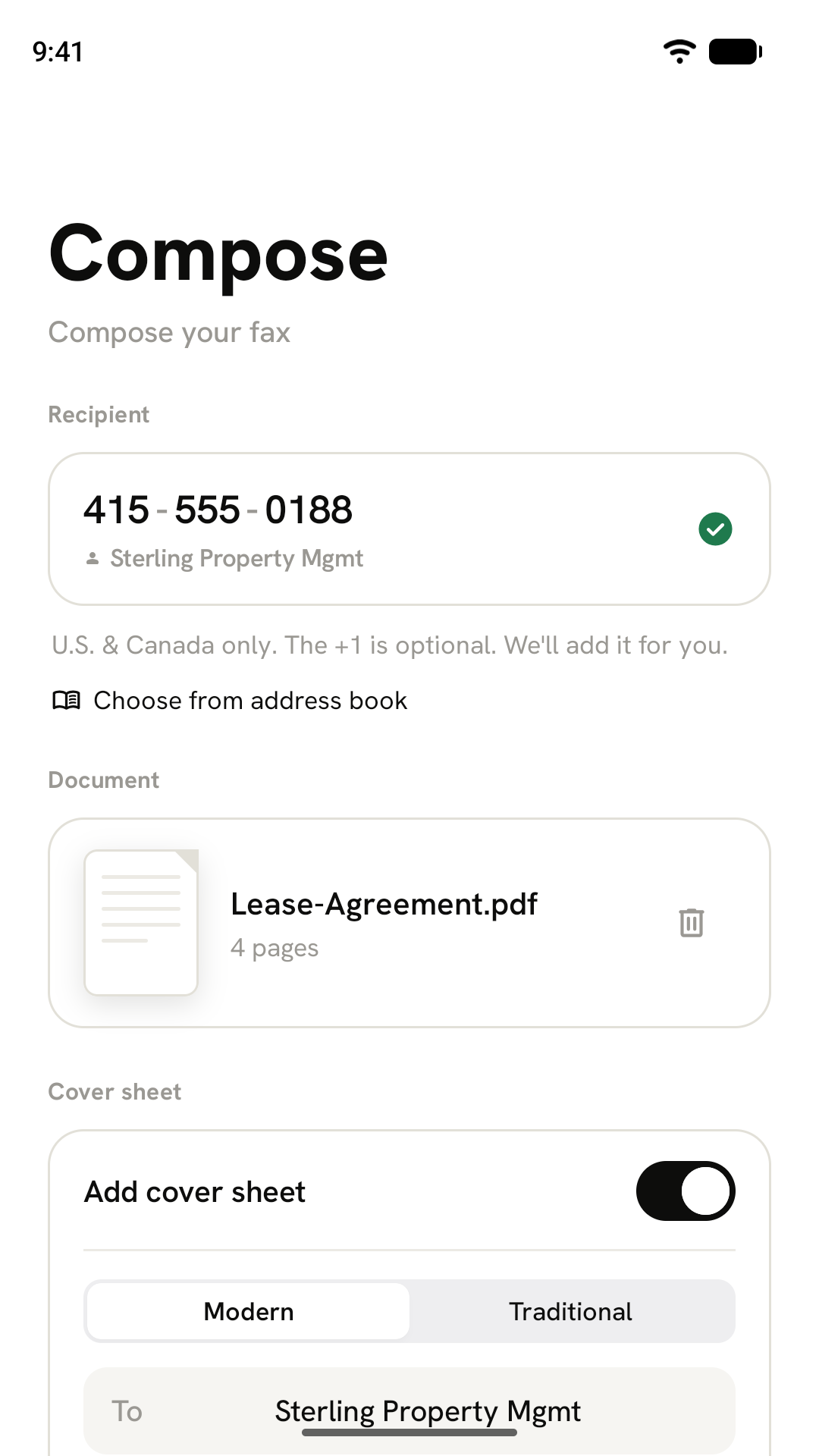
The scan opens on the Compose screen. Type the number under Recipient. The +1 is optional. Numbers outside the US and Canada are rejected.
Tap Save to keep a number you fax often. Next time, pick it with Choose from address book.
The Document section shows the page count. One fax can hold up to 50 pages. Past that, the app asks you to split the document.
Step 4: Add a Cover Sheet If You Want One
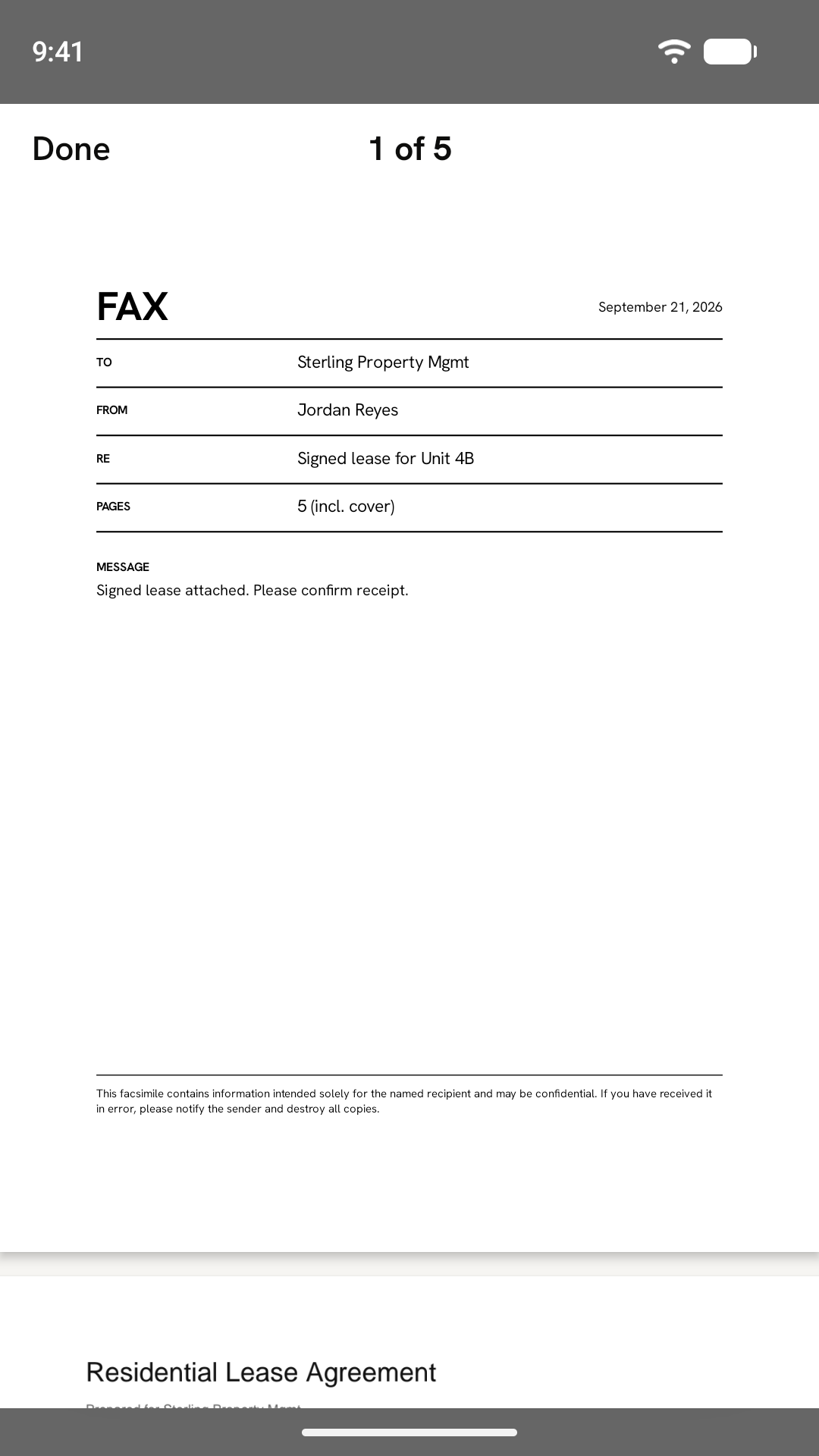
Turn on Add cover sheet to put a cover page in front of the scan. Pick Modern or Traditional. Then fill in To, From, Subject and Message.
The cover sheet counts as one page. A 4-page scan with a cover sheet is a 5-page fax. The cover sheet carries no ads.
Step 5: Preview the Fax
Tap Preview fax to see every page the recipient will get, with the cover sheet as page 1. The title bar shows where you are, such as "1 of 5". Tap Done to go back.
Check that each page is straight and readable. If one isn't, tap the trash icon next to the document on Compose, tap Remove and scan again. Nothing has been sent or charged yet.
Step 6: Tap Send and Pay for the Pages
The Send button shows the page count, such as "Send 5 pages", next to the price. On Android you pay for exactly the pages you send, at 50¢ per page. Nothing renews.
Tap Send. The app shows Preparing your fax while it uploads the document. Google Play's payment sheet opens next. Confirm the purchase there.
Credits on your balance are used first. Google Play charges only for the rest. If your credits cover the whole fax, the button says No charge and no payment sheet opens.
The app shows Dialing next. Tap Track delivery to follow the fax.
Step 7: Watch It Send
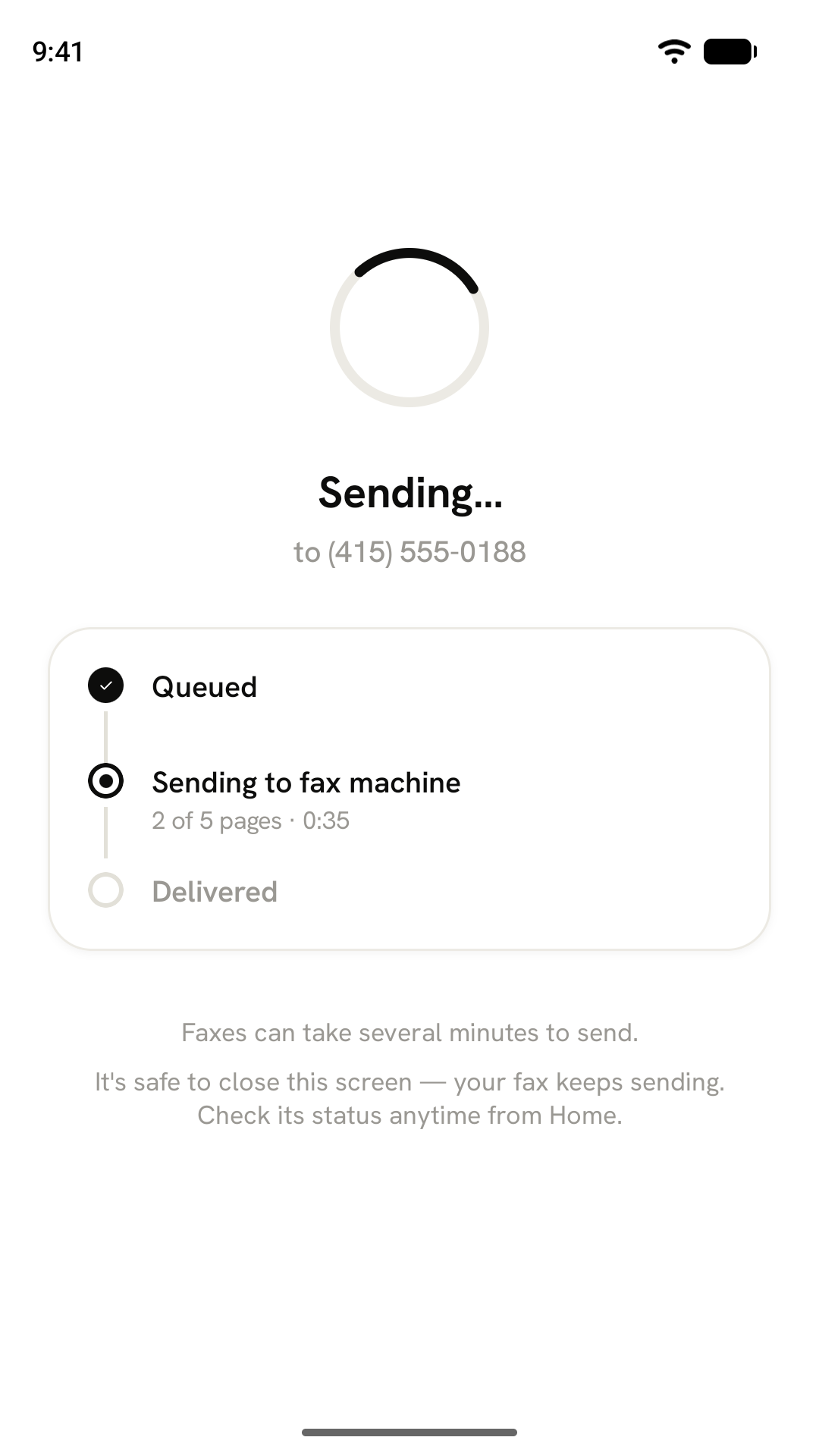
The status screen shows Sending and the number you're faxing. It can also show the pages sent so far, such as "2 of 5 pages".
A fax usually goes through in a few minutes. Some take longer. You can close the screen. The fax keeps sending, and you can check on it from Home.
Step 8: Get the Receipt
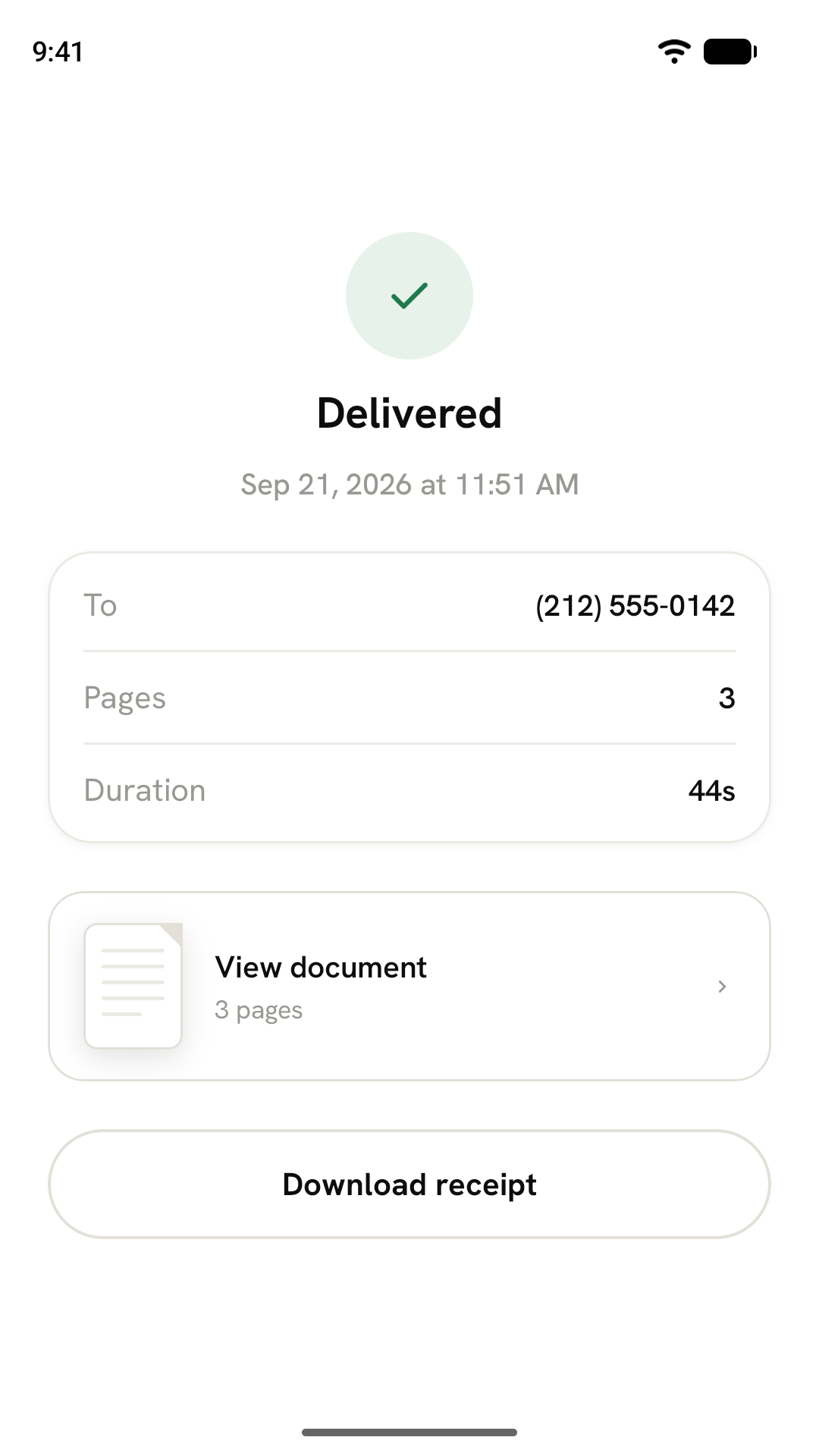
The status changes to Delivered once the fax goes through. The screen shows who it went to and how many pages were sent. Tap View document to see what you sent. Tap Download receipt to open the receipt.
Cheapfax deletes the document 30 days after sending. The receipt stays available.
If a Fax Fails
Cheapfax refunds a failed fax automatically. The credits for those pages go back to your balance without you asking. The fax's screen shows why it failed.
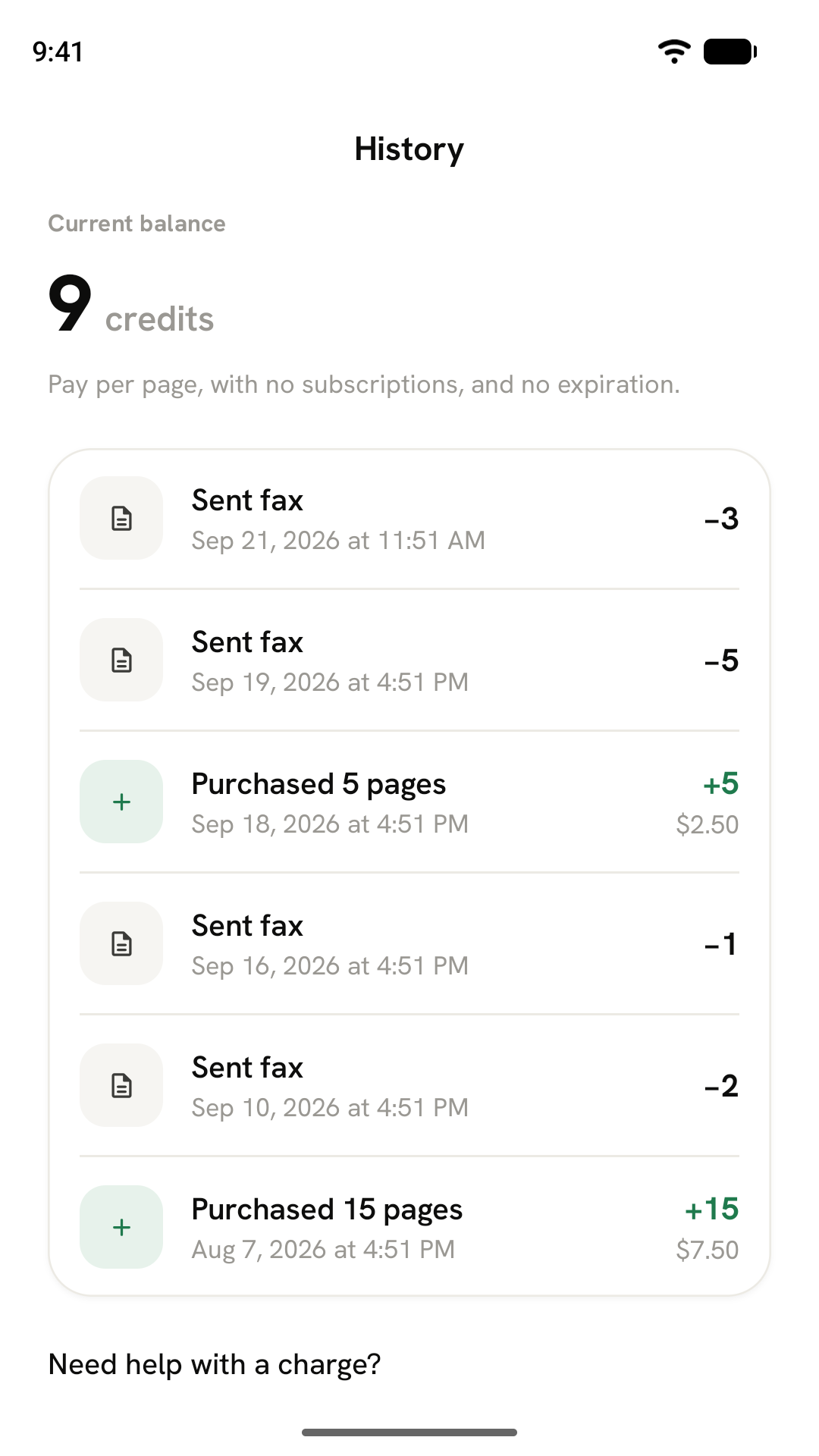
Tap the person icon at the top of Home to open Account. Tap Credit and activity history. The refund shows as a "Refund: fax failed" row next to the "Sent fax" rows.
Tips for Better Scans
Lay the paper flat on a plain, dark surface.
Use good light and keep your own shadow off the page.
Keep text away from the edge of the page.
Open Preview fax before you send. It catches crooked pages.
Check the fax number before you tap Send.
FAQ
Do I Need a Landline to Scan and Fax From Android?
No. Cheapfax sends the fax over the internet. You only need your phone and a connection.
How Many Pages Can I Send?
Up to 50 pages in one fax. A cover sheet counts as one of them.
How Much Does It Cost?
50¢ per page. The Send button shows the price before you pay. There's no subscription.
Can I Receive Faxes With Cheapfax?
No. Cheapfax only sends.
Can I Fax a PDF Instead of Scanning?
Yes. Tap Choose from Files on the New fax screen and pick the PDF. The rest of the steps are the same.